Want to calculate Azure costs accurately and stop overspending? You’re not alone. With Microsoft Azure’s vast array of services, understanding your cloud bill can feel like decoding a foreign language. This guide breaks it down—step by step—so you can gain control, predict expenses, and optimize like a pro.





Why You Need to Calculate Azure Costs Accurately

Cloud computing offers unmatched flexibility, but without proper cost tracking, your Azure bill can spiral out of control. Whether you’re a startup, enterprise, or IT manager, knowing how to calculate Azure costs is no longer optional—it’s essential for financial health and operational efficiency.
Prevent Budget Overruns
One of the biggest risks of cloud adoption is unexpected spending. Unlike traditional on-premises infrastructure, Azure operates on a pay-as-you-go model. This means you’re billed for every virtual machine, storage account, and data transfer—even if they’re underutilized.
Without proactive monitoring, idle resources or misconfigured services can lead to massive overruns. For example, a single unmonitored VM running 24/7 can cost hundreds per month. By learning how to calculate Azure costs early, you can set alerts, enforce policies, and avoid nasty surprises at the end of the billing cycle.
Improve Financial Accountability
When multiple teams use Azure—developers, data scientists, DevOps—costs get scattered across departments. This lack of visibility makes it hard to assign responsibility or justify cloud investments.
By mastering how to calculate Azure costs, you enable chargeback and showback models. These allow finance and IT teams to track spending by project, team, or application. This transparency fosters accountability and helps leadership make informed decisions about resource allocation.
“If you can’t measure it, you can’t manage it.” – Peter Drucker
How to Calculate Azure Costs: Core Components Explained
To calculate Azure costs effectively, you must first understand the building blocks of Azure pricing. Microsoft breaks down costs into several key components, each with its own pricing model and variables.
Compute Resources: VMs, Containers, and Serverless
Compute is often the largest chunk of your Azure bill. It includes:
- Virtual Machines (VMs): Priced hourly or per second (depending on OS and region), with additional costs for size, storage, and networking.
- Container Instances & Kubernetes (AKS): Billed based on vCPU, memory, and duration. AKS has a control plane fee (free as of 2024) plus node costs.
- Serverless (Azure Functions, Logic Apps): Pay-per-execution model. Costs depend on execution time, memory, and number of invocations.
To calculate Azure costs for compute, multiply the hourly rate by usage time. For example, a D2s v3 VM costs ~$0.11/hour. Running it 24/7 for a month (720 hours) totals ~$79.20.
Storage: Blob, Disk, and Archive Tiers
Storage pricing varies by type, redundancy, and access frequency:
- Blob Storage: Hot, Cool, and Archive tiers offer trade-offs between performance and cost. Archive can be 80% cheaper than Hot but has retrieval fees.
- Managed Disks: SSD and HDD options with different IOPS and throughput. Premium SSDs cost more but deliver high performance.
- Data Transfer: Inbound data is free, but outbound (egress) costs vary by region and volume.
For example, storing 1 TB in Cool Blob Storage in the US East region costs ~$18/month, while the same in Archive costs ~$3. But retrieving 1 TB from Archive can cost ~$50 in early deletion fees.
Networking and Data Transfer
Networking is often overlooked but can become a cost driver, especially in hybrid or multi-region setups.
- Bandwidth: Egress (data leaving Azure) is charged per GB. Rates drop at higher volumes but vary by destination region.
- Load Balancers: Basic tier is free; Standard tier charges per hour and data processed.
- VPN & ExpressRoute: Site-to-site connections have hourly and data transfer fees.
To calculate Azure costs for networking, estimate monthly egress. For instance, transferring 10 TB out to the internet from US East costs ~$870 (first 10 TB at $0.087/GB).
Tools to Calculate Azure Costs with Precision
Microsoft provides several native tools to help you calculate Azure costs. These are essential for forecasting, monitoring, and optimizing your cloud spend.
Azure Pricing Calculator
The Azure Pricing Calculator is the go-to tool for estimating costs before deployment. It lets you build a virtual environment by selecting services, regions, and configurations.
- Add VMs, databases, storage, and networking components.
- Adjust instance sizes and quantities.
- See real-time cost estimates in USD or other currencies.
While it doesn’t pull actual usage data, it’s perfect for planning migrations, new projects, or comparing architectures. For example, you can compare the cost of running 10 VMs vs. 5 larger ones to find the most economical setup.
Azure Cost Management + Billing
This is the most powerful tool to calculate Azure costs from actual usage. Integrated into the Azure portal, it provides:
- Detailed cost analysis by service, resource group, or tag.
- Monthly budget alerts and forecasts.
- Exportable reports for finance teams.
You can drill down into daily spending, identify top cost drivers, and even allocate costs to departments using tags. For example, tag resources with Project=CRM or Team=Marketing to track spending by initiative.
Link your Azure account to Azure Cost Management to get real-time insights and anomaly detection.
Azure Advisor Recommendations
Azure Advisor is a free tool that analyzes your environment and suggests cost-saving actions. It can help you calculate Azure costs by identifying inefficiencies such as:
- Underutilized VMs (e.g., CPU usage below 5% for 7 days).
- Unattached disks or unused public IPs.
- Opportunities to switch to Reserved Instances.
For example, Advisor might recommend resizing a VM from D4s v3 to D2s v3, saving ~50% on compute costs. These actionable insights directly impact your ability to calculate Azure costs accurately and reduce waste.
Advanced Techniques to Calculate Azure Costs Across Environments
For organizations with complex deployments—multi-tenant SaaS, hybrid cloud, or multi-subscription setups—basic cost tools aren’t enough. You need advanced strategies to calculate Azure costs at scale.
Using Tags for Cost Allocation
Tags are key-value pairs (e.g., Environment=Production, Owner=DevTeam) that you attach to Azure resources. They don’t affect performance but are critical for cost tracking.
Once tagged, you can filter and group costs in Azure Cost Management. For example:
- Compare dev vs. production spending.
- Track costs by department or project.
- Identify resources owned by specific teams for cleanup.
Best practice: Enforce tagging policies using Azure Policy. For instance, create a rule that blocks resource creation without required tags like CostCenter or Project.
Multi-Subscription and Enterprise Agreement Tracking
Large organizations often have multiple Azure subscriptions under an Enterprise Agreement (EA) or Microsoft Customer Agreement (MCA). This complexity makes it harder to calculate Azure costs holistically.
Solution: Use Management Groups to organize subscriptions and apply governance at scale. Then, use Cost Management to view aggregated spending across all subscriptions.
If you’re on an EA, you get access to Azure Cost Management for Enterprise, which includes:
- Department-level billing views.
- Enrollment-wide cost trends.
- Custom reporting APIs.
This level of visibility is essential for CFOs and cloud architects who need to calculate Azure costs across the entire organization.
Forecasting Future Costs with Machine Learning
Azure Cost Management uses machine learning to predict future spending based on historical trends. This forecast helps you:
- Anticipate budget overruns.
- Plan for seasonal spikes (e.g., Black Friday traffic).
- Validate the ROI of optimization efforts.
The forecast includes confidence intervals (e.g., 80% or 95%) so you can assess risk. For example, if the system predicts next month’s bill will be $15,000 ± $1,500, you can prepare accordingly.
Reserved Instances and Savings Plans: How to Calculate Azure Costs with Discounts
One of the most effective ways to reduce Azure costs is by committing to long-term usage through Reserved Instances (RIs) or Savings Plans.
Understanding Azure Reserved VM Instances
By purchasing a Reserved VM Instance, you commit to using a specific VM size (e.g., D2s v3) in a region for 1 or 3 years. In return, you get up to 72% discount compared to pay-as-you-go pricing.
To calculate Azure costs with reservations, use this formula:
Discounted Cost = (Base Pay-As-You-Go Rate × Discount Rate) × Hours in Term
For example, a 1-year reservation for a D2s v3 in US East costs ~$500 upfront (vs. ~$950 pay-as-you-go). That’s a 47% savings.
Reservations are ideal for stable, predictable workloads like domain controllers or database servers.
Savings Plans for Flexible Compute Usage
Introduced in 2021, Azure Savings Plans offer a more flexible alternative to RIs. Instead of locking into a VM size, you commit to a certain amount of compute usage (measured in $/hour) across VM families or regions.
- Compute Savings Plan: Applies to any VM in a family (e.g., D-series) across regions.
- Region-specific Savings Plan: Even broader flexibility.
With a $0.10/hour commitment, you get discounted rates on any qualifying VM. This is perfect for teams with variable workloads or those using autoscaling.
How to Calculate Azure Costs with Hybrid Benefit
If you have existing Windows Server or SQL Server licenses with Software Assurance, you can use Azure Hybrid Benefit to save up to 82% on VM costs.
Instead of paying for the OS license in Azure, you “bring your own license” (BYOL). For example:
- Pay-as-you-go Windows VM: $0.09/hour (includes OS).
- Same VM with Hybrid Benefit: $0.03/hour (only compute cost).
To calculate Azure costs with Hybrid Benefit, subtract the OS licensing fee from the total. Use the Azure Hybrid Benefit calculator to estimate savings.
Third-Party Tools to Calculate Azure Costs More Effectively
While Azure’s native tools are robust, third-party platforms offer deeper analytics, multi-cloud support, and advanced automation.
CloudHealth by VMware
CloudHealth is a leading cloud management platform that helps you calculate Azure costs with granular detail. Features include:
- Real-time cost dashboards.
- Custom cost allocation models.
- Automated optimization recommendations.
- Support for AWS, Azure, and Google Cloud.
It integrates directly with Azure via API and supports complex tagging hierarchies, making it ideal for enterprises.
Spot.io (by NetApp)
Spot.io specializes in compute optimization. It helps you calculate Azure costs by:
- Automatically resizing VMs based on performance.
- Using spot instances (low-priority VMs) for non-critical workloads.
- Right-sizing containers in AKS.
Customers report 50–70% savings on compute costs. For example, Spot can replace a standard D4s v3 with a spot instance at 60% lower cost, with failover protection.
Lucidchart + Azure Integration for Cost Visualization
While not a cost tool per se, Lucidchart integrates with Azure to create architecture diagrams that include cost annotations. This helps teams visualize where money is being spent.
By mapping resources and their monthly costs on a diagram, stakeholders can quickly identify expensive components and discuss alternatives.
Common Mistakes When Trying to Calculate Azure Costs
Even experienced cloud users make errors that lead to inaccurate cost projections or wasted spending.
Ignoring Egress and Data Transfer Fees
Many teams focus only on VM and storage costs but forget about data transfer. Egress fees can add up quickly, especially if you’re serving global users or backing up to another region.
For example, transferring 5 TB/month from Azure US to users in Asia can cost ~$600/month. Always include egress in your cost model.
Overprovisioning Virtual Machines
It’s common to deploy oversized VMs “just to be safe.” But a VM that’s 80% idle is wasting money. Use Azure Monitor to track CPU, memory, and disk usage over time.
Rule of thumb: If average CPU is below 20% for a week, consider downsizing. This simple step can help you calculate Azure costs more accurately and save 30–50%.
Leaving Test Environments Running 24/7
Dev and test environments often run non-stop, even when unused. A single dev VM can cost $50/month. Multiply that by 20 developers, and you’re spending $1,000/month on idle resources.
Solution: Use Azure Automation or DevTest Labs to auto-shutdown VMs after hours. This can cut dev costs by 60%.
Best Practices to Master How to Calculate Azure Costs
Beyond tools and techniques, adopting the right practices ensures long-term cost efficiency.
Set Monthly Budgets and Alerts
In Azure Cost Management, create budgets with thresholds (e.g., 50%, 75%, 90% of limit). When spending hits a threshold, Azure sends email or webhook alerts.
You can also trigger Azure Functions to auto-shutdown resources if budgets are exceeded. This proactive approach prevents runaway costs.
Conduct Regular Cost Reviews
Hold monthly cloud cost reviews with IT, finance, and team leads. Use Cost Management reports to:
- Review top spenders.
- Identify anomalies (e.g., sudden spike in storage).
- Plan for upcoming reservations.
These meetings build cost awareness and drive accountability.
Train Teams on Cost-Aware Development
Developers often prioritize speed over cost. But small choices—like using Premium SSD instead of Standard—can multiply across hundreds of resources.
Provide training on cost-efficient design patterns. For example:
- Use serverless for event-driven tasks.
- Choose Cool storage for infrequently accessed data.
- Enable auto-scaling to match demand.
When teams understand how to calculate Azure costs, they make smarter decisions.
How do I calculate my Azure costs for free?
You can use the Azure Pricing Calculator and Azure Cost Management + Billing at no extra cost. The Pricing Calculator helps estimate future costs, while Cost Management analyzes actual usage. Both are free for all Azure customers.
What is the easiest way to calculate Azure costs?
The easiest way is to use the Azure Pricing Calculator. Just select the services you plan to use, configure them, and see the estimated monthly cost. For actual usage, check Azure Cost Management in the portal.
Can I get a detailed breakdown of my Azure bill?
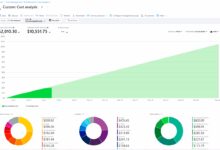
Yes. In the Azure portal, go to Cost Management + Billing → Cost Analysis. You can filter by service, resource group, tag, or date range to get a detailed breakdown. You can also export the data to CSV or connect to Power BI for advanced reporting.
How can I reduce my Azure costs by 50%?
You can reduce costs by: 1) Right-sizing underutilized VMs, 2) Using Reserved Instances or Savings Plans, 3) Deleting unused resources, 4) Switching to cheaper storage tiers, and 5) Automating shutdown of non-production environments. Many organizations save 40–60% with these steps.
Does Azure charge for inbound data transfer?
No, Azure does not charge for inbound data transfer (data entering Azure). However, outbound data transfer (data leaving Azure) is charged based on volume and destination region. Always factor egress costs into your calculations when you calculate Azure costs.
Learning how to calculate Azure costs is a critical skill in today’s cloud-first world. From using the Azure Pricing Calculator to leveraging Reserved Instances and third-party tools, the strategies in this guide give you full control over your spending. By combining accurate forecasting, continuous monitoring, and smart optimization, you can reduce waste, improve accountability, and maximize ROI. Start applying these techniques today—and turn your Azure bill from a mystery into a manageable, predictable expense.
Further Reading: